Why use MCP?
Because it lets an AI assistant use programmatic data and present it in a human-friendly way, through your own account. It is a layer above programming complexity: you ask a normal question, and the assistant handles the technical work.
Think about weather data. The raw data behind a forecast can be complex — but a friend who is a weather forecast expert is willing to explain it in normal speech, and you can ask anytime. Your AI assistant does that with the information in your Osboon account.
The connection is read-only. It can answer questions using your Osboon information, but it cannot edit your cards or act on your behalf.
Does my assistant work with this?
The short version. Choose a name to jump to its setup guide further down the page.
Works today
No extra plan needed for a normal personal account.
 Claude
 Mistral Le Chat
Dev Tools:
- Claude Code
- Codex CLI
- VS Code
with GitHub Copilot - Cursor
- Zed
- Goose
- LM Studio
- Warp
- Gemini CLI
- Qwen Code CLI
 Claude Code
 Codex CLI
 Cursor
 Zed
Zed Goose
Goose LM Studio
 Warp
Warp Gemini CLI
 Qwen Code CLI
and others
Works on some plans
Possible, but your plan, region or an administrator decides.
 ChatGPT
 Google Gemini
 Perplexity
 Grok
Grok Raycast
 Notion
 Slack
SlackNot supported
These cannot connect to an outside account like this one.
 Microsoft Copilot
 DeepSeek
 Ollama
Checked against each vendor’s own documentation on 15 September 2026. This area moves quickly — if something has changed, tell us and we will fix the page.
How it works
Three steps, about two minutes, once. After that you just ask questions.
- Choose your assistant. Check the list above, then open the matching setup guide further down this page.
- Add Osboon to it. Every assistant has a place to add a connection. You give it a name and paste one address — the same address for everyone.
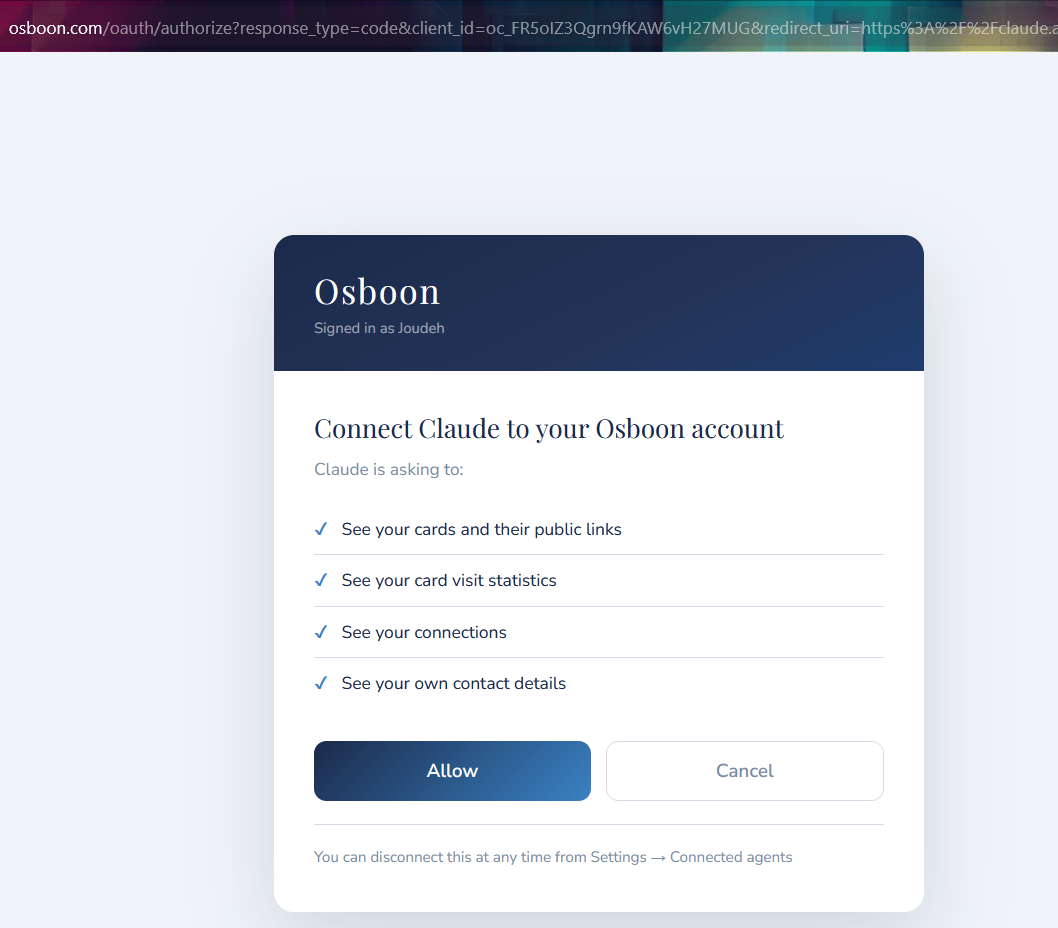
- Sign in on Osboon. Your assistant sends you to an Osboon page, on the
osboon.com domain, where you sign in and approve what it may read.
Read-only access, with control in your hands
When you connect an assistant, Osboon gives it a channel for reading selected information from your account. It does not receive the key to your account, and it does not receive permission to change anything.
The key to your account stays away; what you receive is a channel for reading.
You sign in on an Osboon page, on the Osboon domain. Your Osboon password is never entered into the assistant.
Your assistant can (7 tools)
- Read your card analytics
- Compare your cards
- List who viewed a card
- Find a card’s public link
- Read your connections
- Read your contact channels
- Read your available languages
Your assistant cannot
- Create, edit, publish or delete a card
- Add, remove or edit contacts
- Send messages
- Change your profile, settings, password or subscription
- Act as you anywhere
No write permission is requested, so there is no route through this connection for an assistant to post, edit or delete anything in Osboon.
One honest limit: your AI provider can see the Osboon information contained in the answers it gives you, and handles it under its own privacy terms.
You can disconnect at any time in Settings → Security → Agents. Disconnecting in Osboon stops further reading immediately. It does not remove the connection from your assistant’s own settings, and it does not erase what the provider already received — remove it there too for a complete cut.
Setup guides
Pick your assistant. Each guide states what it needs before the first step.
Every guide uses the same connector address:
Can I use this with Claude?
Available on every Claude plan — Free, Pro, Max, Team and Enterprise. On the Free plan you may have one custom connector in total. On Team and Enterprise, only an owner can add one for the organisation.
Last checked 15 September 2026 · Tested by Osboon.
Steps
- Open Claude on the web or in the desktop app.
- Go to Settings → Customize → Connectors.
- Choose +, then Add custom connector.
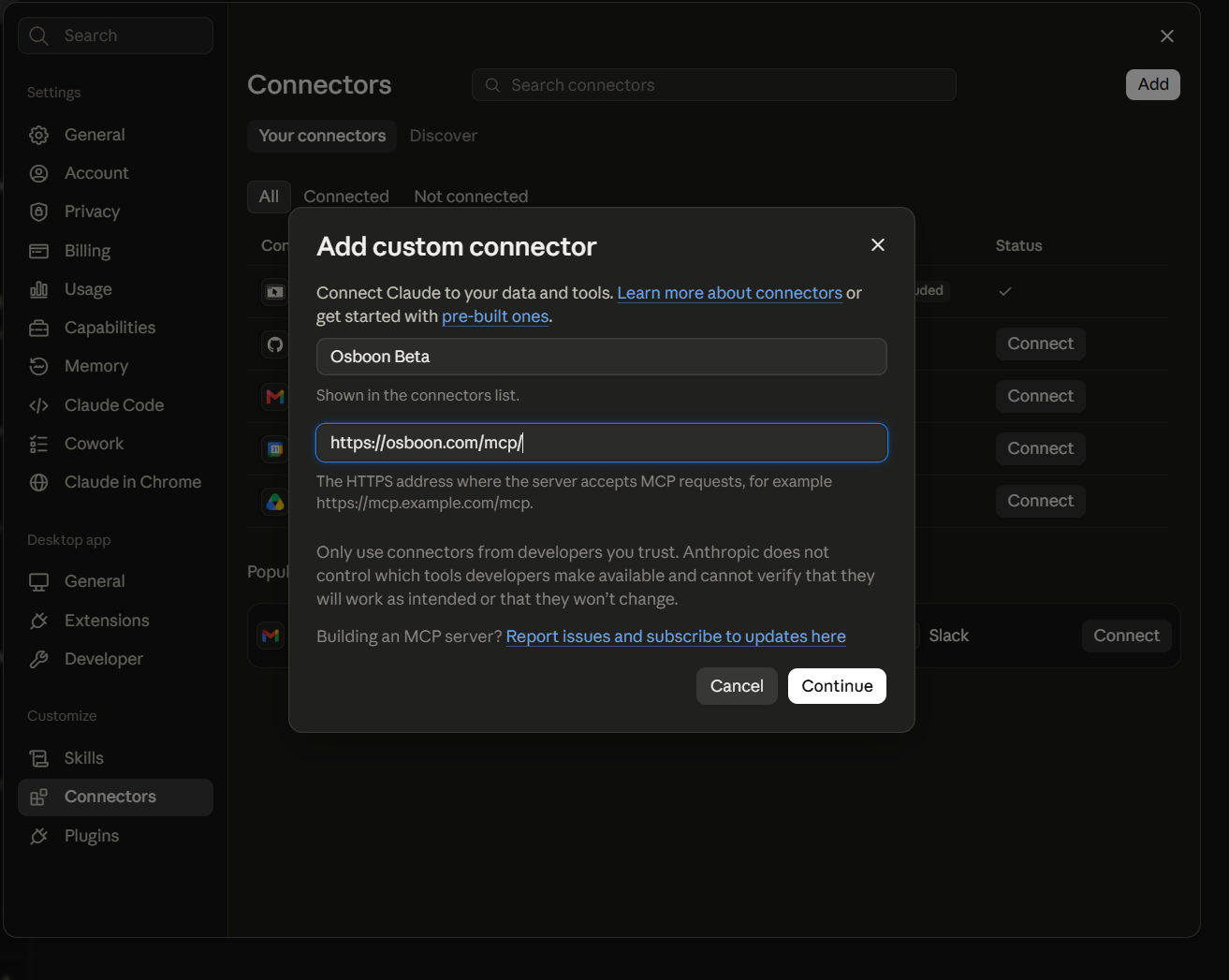
- Give it a name —
Osboonworks — and paste the address above. - Choose Add, then Connect, and sign in on the Osboon page that opens. Choose Allow to approve what it may read.
Good to know
- Adding a connector from the Claude mobile apps is still in beta. Add it on the web or desktop, and it then appears on iOS and Android.
- If Claude asks how to register, choose Register automatically.
Removing it
In Claude: Settings → Customize → Connectors, then remove Osboon. In Osboon: Settings → Security → Agents, then disconnect. Do both for a complete cut.
Can I use this with ChatGPT?
A paid plan is required — the Free plan is excluded. Beyond that we cannot state the plan list with confidence: OpenAI’s developer documentation lists Pro, Plus, Business, Enterprise and Education on the web, while its help centre is reported to list only Business, Enterprise and Education. We could not resolve the difference against OpenAI directly, so we would rather tell you that than guess. Web only — this cannot be added from the ChatGPT mobile apps.
Last checked 15 September 2026 · Availability uncertain — vendor documentation disagrees. The steps below are from OpenAI’s current developer documentation.
Steps
- In ChatGPT on the web, go to Settings → Security and login and turn on Developer mode.
- Go to
chatgpt.com/plugins. - Choose +, then give it a name and a short description.
- Paste the address above, including the
/mcpat the end, and choose Create.
Good to know
- OpenAI has renamed these several times — you may see “connectors”, “apps” or “plugins” depending on when your account was updated.
Removing it
In ChatGPT: remove it from the same plugins page. In Osboon: Settings → Security → Agents, then disconnect.
Can I use this with Google Gemini?
Only inside Gemini Spark, which is in beta. It needs a Google AI Pro or Ultra plan, a personal Google account (a work or school account cannot use it), age 18 or over, the United States, English, and activity history switched on. Adding is done on the web; once added it also works on mobile.
Last checked 15 September 2026 · Documentation checked — not personally tested by Osboon. These steps follow the vendor’s current documentation; the interface may differ by plan, region or account type.
Steps
- Open
gemini.google.comin a browser. - Go to Settings → Connected Apps → Custom apps.
- Choose Add a custom app.
- Paste the address above, then choose Next and sign in on the Osboon page.
Removing it
In Gemini: Settings → Connected Apps, then remove it. In Osboon: Settings → Security → Agents, then disconnect.
Can I use this with Mistral Le Chat?
Connectors are an administrator feature. On Free, Pro and Student accounts you are your own administrator, so it appears to be available — we have not tested where that boundary sits. On a company account, an administrator has to allow it. This is the most straightforward paste-an-address flow of any of the chat assistants.
Last checked 15 September 2026 · Documentation checked — not personally tested by Osboon. These steps follow the vendor’s current documentation; the interface may differ by plan, region or account type.
Steps
- In the sidebar, go to Intelligence → Connectors.
- Choose + Add Connector, then Custom MCP Connector.
- Give it a name and paste the address above. Sign-in is detected automatically.
- Sign in on the Osboon page that opens.
Removing it
In Le Chat: Intelligence → Connectors, then remove it. In Osboon: Settings → Security → Agents, then disconnect.
Can I use this with Perplexity?
Requires a Pro, Max or Enterprise plan. The Free plan cannot add a custom connection.
Last checked 15 September 2026 · Documentation checked — not personally tested by Osboon. Perplexity’s help centre blocks automated reading, so these steps come from its published pages indirectly and may be less precise than the others here.
Steps
- Go to Settings → Connectors.
- Choose + Custom connector, then Remote.
- Give it a name and paste the address above.
- Tick the acknowledgement box, then press Add.
- Choose Connect and sign in on the Osboon page.
Removing it
In Perplexity: Settings → Connectors, then remove it. In Osboon: Settings → Security → Agents, then disconnect.
Can I use this with a developer or desktop tool?
Many coding and desktop tools can hold this connection. Two of them we use ourselves.
Last checked 15 September 2026 · Claude Code and Codex CLI: tested by Osboon. The rest: documentation checked, not personally tested.
Claude Code
Run claude mcp add --transport http osboon https://osboon.com/mcp/, then
/mcp to sign in through your browser.
OpenAI Codex CLI
Run codex mcp add osboon --url https://osboon.com/mcp/, then
codex mcp login osboon.
Tools with a settings screen
In VS Code with GitHub Copilot, Cursor, Zed, Goose, LM Studio, Warp, Kiro, Cline, Devin Desktop, JetBrains AI Assistant and Open WebUI, look for a connections, MCP or extensions screen, choose the option for a remote or HTTP connection, and paste the address above. Sign-in opens in your browser.
Command-line tools
Gemini CLI, Qwen Code CLI, Amazon Q Developer CLI and Continue.dev take the address in their own configuration file rather than a settings screen — see each tool’s documentation for where that file lives.
Things that catch people out
- Raycast needs a Pro subscription.
- Open WebUI can only be set up by whoever administers the installation.
- GitHub Copilot on a Business or Enterprise organisation has this turned off by default — an administrator has to enable it. Personal Free and Pro accounts are fine.
- Older guides for some of these tools mention extra bridges or experimental flags that are no longer needed. If a guide looks dated, check the vendor’s own documentation.
Why isn’t my assistant on the list?
Some well-known assistants cannot connect to an outside account like this one:
Last checked 15 September 2026 · Not supported. Based on each vendor’s own documentation — in these cases, on the absence of any way to add a connection rather than an explicit refusal.
- Microsoft Copilot (the consumer app) offers a fixed catalogue of connections — OneDrive, Outlook and similar — with no place to add an address.
- DeepSeek’s chat app has no documented way to add a connection. Its separate command-line coding tool does.
- Ollama is not this kind of client at all. The request to make it one has been open since November 2024. Anything you find describing “Ollama with MCP” is a third-party bridge, not Ollama itself.
If your assistant is missing rather than listed here, tell us which one — that is how this list grows.
Common questions
Can it change anything in my account?
No. The connection is read-only, and no permission to write is ever requested. It cannot create, edit, publish or delete a card, and it cannot act as you anywhere.
Where do I sign in?
On an Osboon page, on the osboon.com domain. Your assistant sends you there; you never type your Osboon password into the assistant itself. If anything asks for your Osboon password somewhere that is not osboon.com, stop.
What can my AI provider see?
The Osboon information contained in the answers it gives you, which it handles under its own privacy terms. That is the honest limit of what we can promise — we control what leaves Osboon, not what your provider does with an answer once it has it.
What happens when I disconnect?
Go to Settings → Security → Agents in Osboon and disconnect. Reading stops immediately. It does not remove the connection from your assistant’s own settings, and it does not erase anything your provider already received — remove it on that side too.
Do I need a paid Osboon plan?
No. Any signed-up Osboon account can connect an assistant.
Ready when you are.
Paste the address into your assistant, sign in on Osboon, press Allow.
Which assistants support this changes often, and vendors rarely announce it. Everything on this page was checked against each vendor’s own documentation on 15 September 2026. If your assistant is missing, or a step here no longer matches what you see, write to better@osboon.com — and if the connection itself fails, fix@osboon.com.
This connector is also documented on GitHub: github.com/osboon/osboon-mcp.